Cancelling contract features
This article explains how to cancel an IONOS add-on feature to a contract.
Note
Details regarding applicable notice periods can be found in the Help Center article "Deadlines for contract termination".
Before you cancel - secure benefits now
In many conditions, there are options that better suit your needs, and can help you to save money. Talk to us and secure exclusive terms.
Talk to us now and receive a personalized offer: 1-866-258-5616.
Details on the cancellation process (additional feature)
Call us to conveniently to cancel your IONOS add-on by phone: 1-866-258-5616.
If you wish to cancel your entire contract, proceed as described in the Help Center article Cancelling your entire IONOS contract.
Before cancelling, be sure to carry out a complete data backup of the relevant product. The Help Center section Exporting data from your IONOS products explains how.
When cancelling an email product: If you use many email addresses, create a list of all required email accounts, mailboxes, and any forwarding.
For your security: If Domain Guard is active to protect domains, this protection must be switched off before cancellation.
Cancel a contract feature in your IONOS account
How to cancel an additional item:
- Log in to your IONOS account account.
Click on Menu > My account in the title bar. The My account page opens.
Click on the Contracts & subscriptions tile. The Contracts & subscriptions page opens.
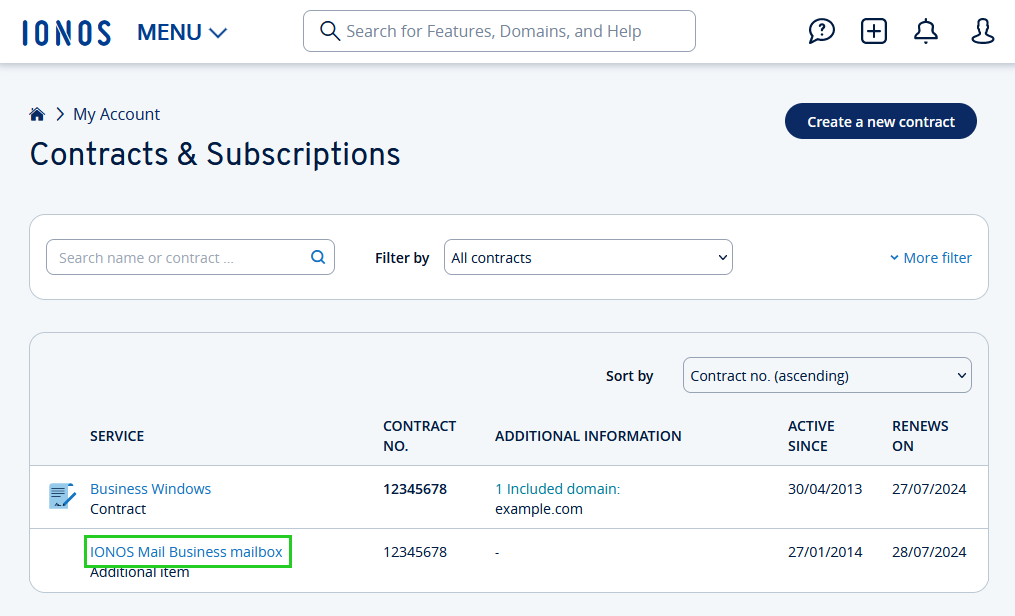
- Click on the name of the additional product you wish to cancel in the Service column.
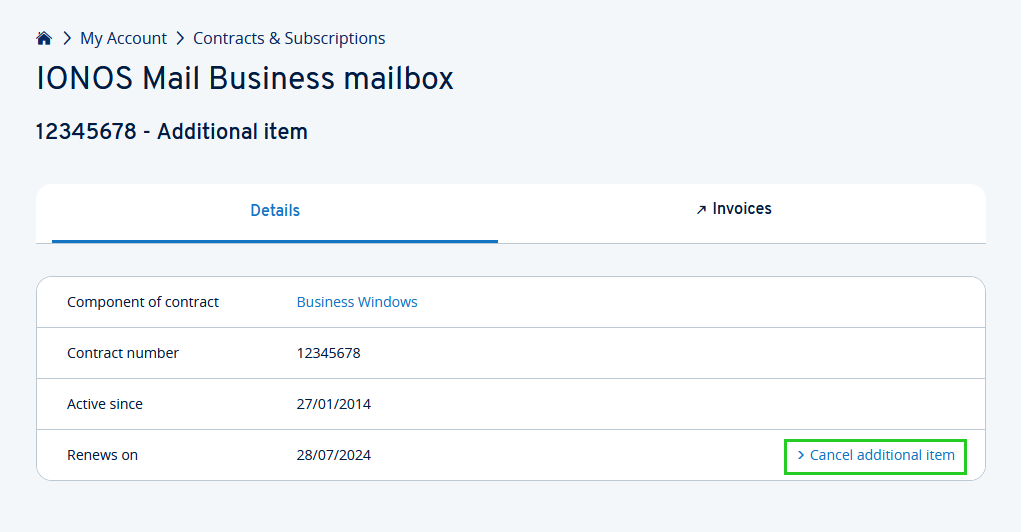
Click on Cancel additional item in the Renews on line. The Cancel additional items window opens.
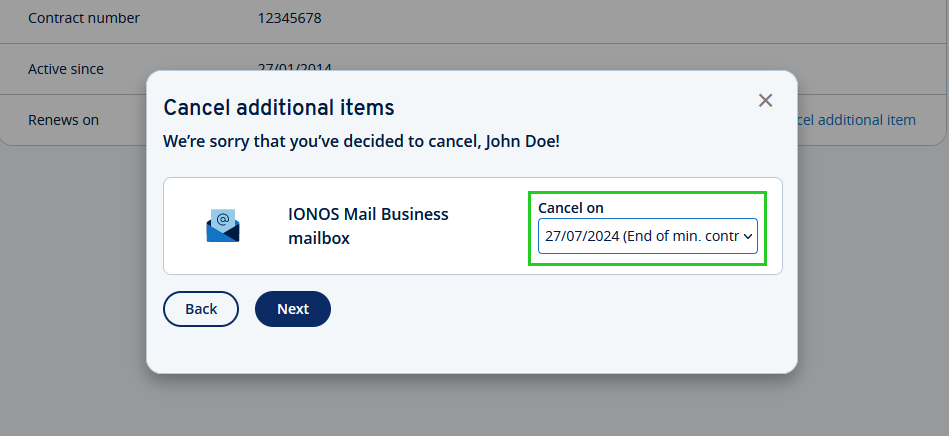
Optional: Select the desired cancellation date if prompted, and click Next.
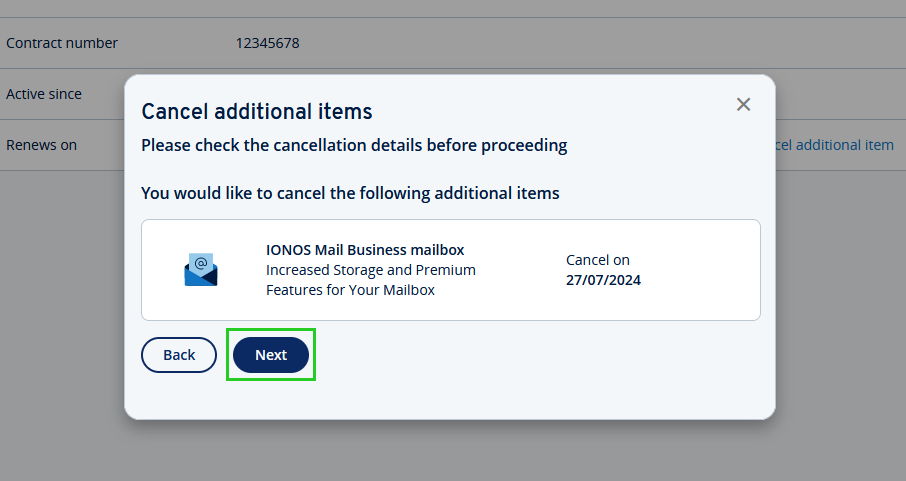
- Select a reason for cancellation and click Next.
- You will receive a preliminary summary of your cancellation. Please check that everything is correct.
- Click on Back to edit the cancellation.
- Click on Continue cancellation to continue with the cancellation.
- You will now be informed about the effects of your cancellation.
- Click Keep additional items to abort your cancellation.
- Tick the checkbox for I am aware of the effects of the cancellation. The contract remains active and may incur further charges. to continue with the cancellation.
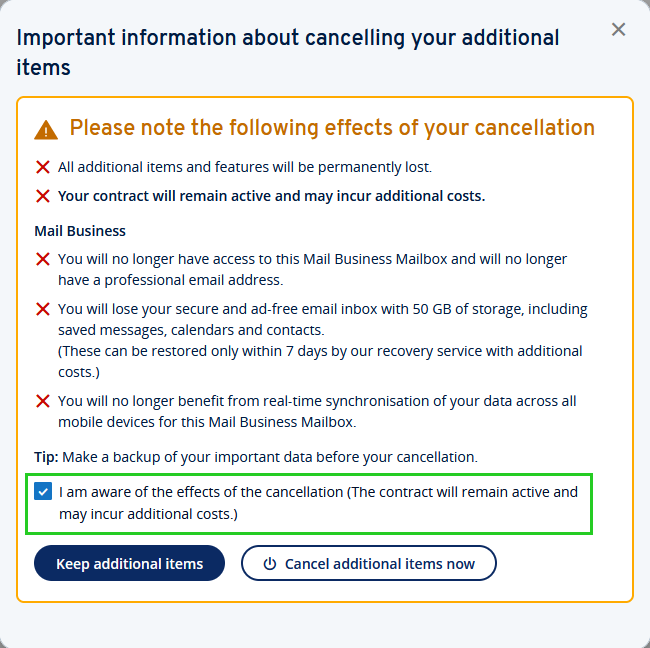
Click on Cancel additional items now to cancel your supplementary product.
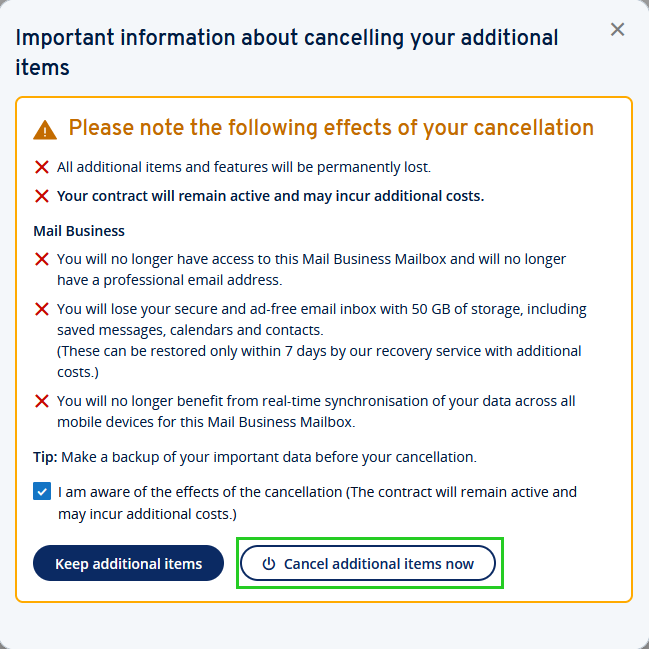
You will then receive a confirmation showing the cancellation date. You will also receive confirmation of the cancellation by email to the email address you have stored with IONOS.
Contact us
This article did not help you or you need help with another topic?